Since our April newsletter update, we’ve expanded how you configure, animate, and present products in Figurement.
Here’s what’s new.
Compare product configurations in one scene
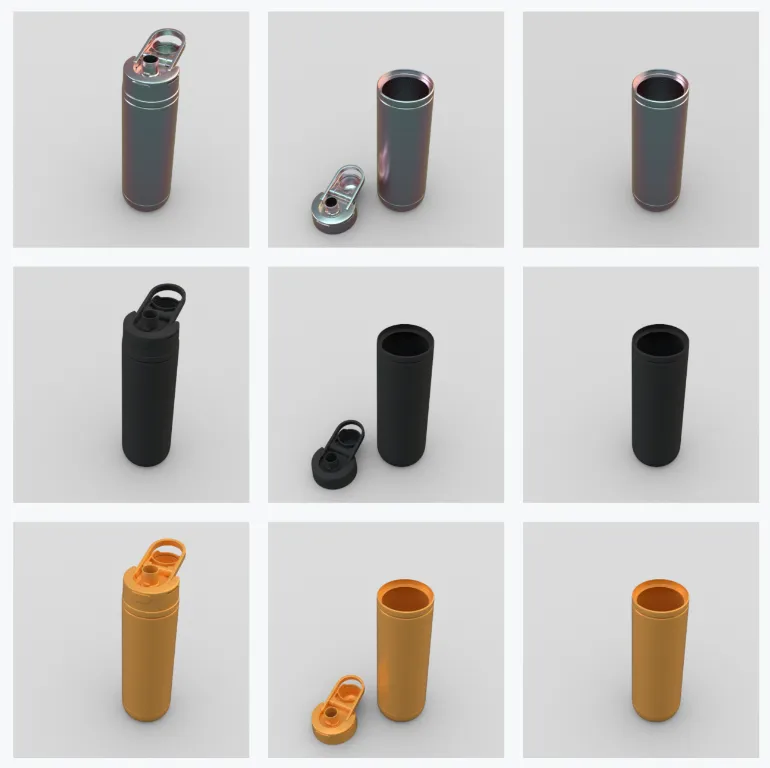
Color and material variants have been part of Figurement for a while, making it easy to manage and review SKUs that differ by color, material, and finish. Now the same mechanism extends to the position and visibility of individual parts: show a lid open or closed, move a component beside the product, or hide a protective cover, then combine those states with your colorways to compare configurations side by side.
The example below crosses three cap states, on, detached beside the bottle, and hidden, with three materials: nine renders from one set of variants instead of nine separate files. Change the shared lighting or camera angle, and every view updates together.
Create animations from a preset, or build your own
Show a product from every angle, reveal how an assembly fits together, or build a camera move for a presentation. Start from a one-click preset: a 360° turntable, dolly zoom, fly-by, crane shot, or exploded view. Then refine it with keyframes and easing on the animation timeline, or build a shot from scratch.
The exploded-view preset separates parts proportionally to their own size, so a complex assembly stays readable as it comes apart instead of turning into a jumble.
Figaro assembles your canvas
Figaro, Figurement’s AI assistant, can now work directly with all data in Figurement. Ask it to create pages, animations, materials, and material graph nodes, or assign a library material to a specific part.
It can also work from a reference photo or a quick sketch to generate or edit product images, plain pixel work like any AI image tool.
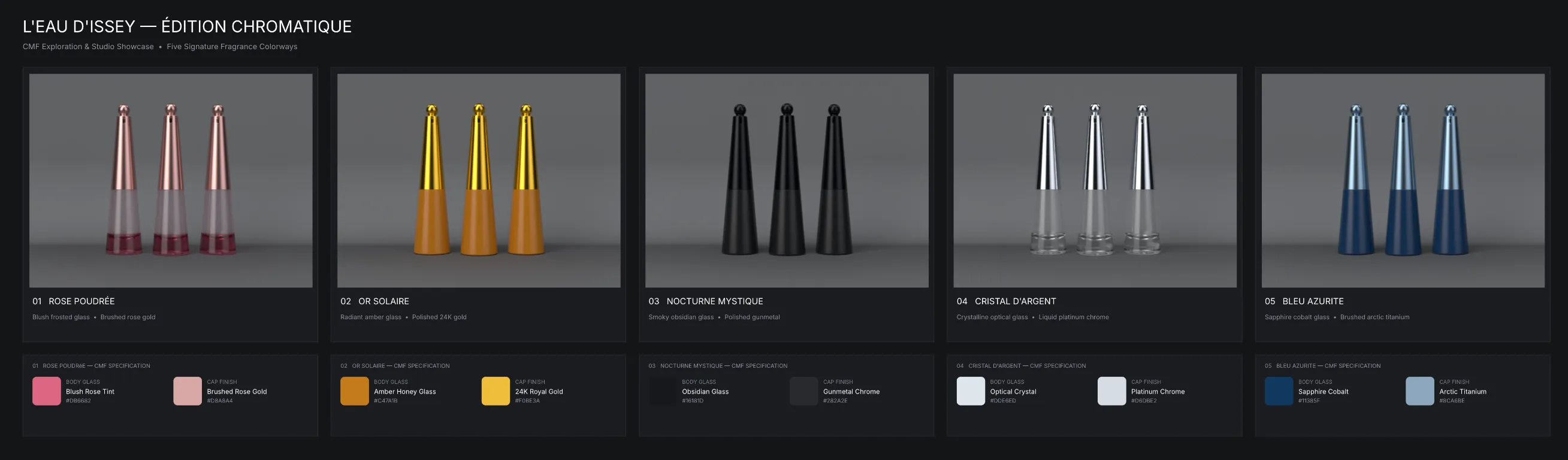
But Figaro’s real value comes from working with real 3D data, not just pixels. It operates directly on meshes, hierarchies, materials, lighting, and colors, and builds presentations, like a CMF (color, material, and finish) sheet, from the same building blocks you would: text, frames, images, and renders.
The example below shows Figaro setting up materials and lighting for a perfume bottle, then arranging five variants with their specifications. Conversations are saved per scene and per user, so you can pick up an earlier thread after closing the tab.
Materials and lighting
Material Graph
Start with Figurement’s built-in material library. If you need something specific, standard sliders and a texture usually get you the rest of the way. The Material Graph is for finishes that need more than that: a node-based shading editor built directly into Figurement.

New material types and better scans
Two new material types expand what you can build without leaving the standard controls. Translucent gives you physical control over how light is absorbed and scattered inside a material, useful for matching something like frosted glass or wax. Translucent Medium instead lets you dial in the look directly with a surface color and a subsurface color, closer to how you’d set up skin, soap, or candle wax.
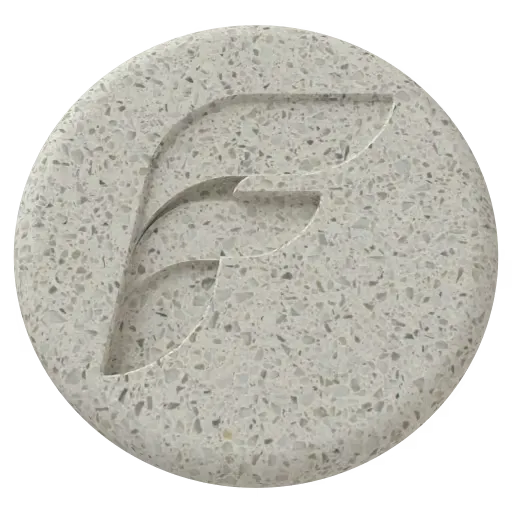
AxF import is also more accurate for SVBRDF and CarPaint V2 scans, so a real-world material sample carries over with less manual correction. You can extract a color directly from a reference image into your library too, instead of eyeballing a hex code.



Materials, lighting, and notes beside your renders
Place materials, colors, and lighting environments on the canvas beside your renders, then drag them onto a view to apply them. Your options stay visible alongside the product. Environments can also stay fixed to camera space, so lighting stays consistent as you rotate the view.
You can sketch directly on a canvas element or pin a callout to a specific part, keeping CMF notes and review comments in context.
Smoother everyday work
Alongside the bigger additions, we keep improving the tools you use constantly while working in a scene: moving parts, adjusting a light, tweaking a slider. Small improvements add up when you use a tool dozens of times a day.
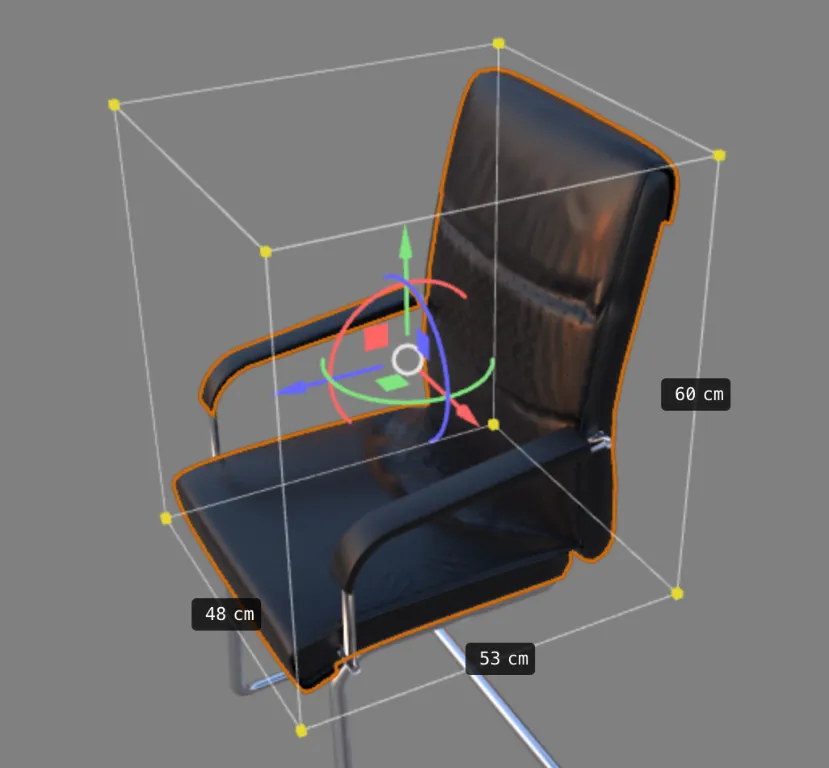
Enter exact values. The upgraded move gizmo and scale cage let you click a dimension or an axis and type an exact number, instead of dragging until it looks right.
Reuse work from other scenes. Browse any other scene from inside the editor and pull in just the prop, the environment, or the part you want, without exporting and reimporting between them.
Iterate faster. Fast Mode is a fourth render setting alongside Photo, Flat, and Wire: a quick, noise-free pass for iterating before you commit to a final image.
Render cleaner. Photorealistic rendering denoises in real time now. It also uses blue-noise sampling, a separate improvement that helps images converge faster from the start.
Work with larger scenes. On supported browsers, Figurement can handle scenes that exceed the standard browser build’s memory limits.
Pause what you’re not using. Live render views can be paused, and that stays true across reloads, saves, and collaboration, so you’re not burning GPU on a view nobody’s looking at.
Share and integrate
Standards, integrations, and sharing are a key part of how we think about Figurement. We want to play nice with the import and export formats and APIs you already rely on, rather than lock your data inside our app. This time around, we focused on the following.
Scenes and libraries can be shared with “Everyone with the link,” so a factory contact or a retailer can open a read-only view without needing a Figurement account. Scenes can also be embedded directly in another page, like an internal wiki or a product site.
Figurement’s glTF importer now reads more of the standard PBR extensions: anisotropy, transmission, clearcoat, and iridescence. Bring in a file that uses them from another tool, and the material still looks right once it’s in Figurement.
Exporting a scene to USD or glTF now bakes materials that don’t map directly to standard PBR, so it still looks right when opened in another tool. A public API with webhooks lets you connect Figurement to your own systems: request an updated render, or push a new material library.
Try it free
The free Starter plan is meant to be genuinely useful: import your own models, get unlimited local renders with no resolution caps or watermarks, and invite collaborators into a scene. It includes a limited allocation of credits for AI and cloud rendering. Paid plans add shared libraries and substantially more credits for Figaro, AI edits, cloud rendering, and other compute-heavy features.
Try it with your own product today.